Using the CHIND interface
This section explains how to navigate the digital environment dedicated to Basilio Brollo’s Dictionarium sinico-latinum. The documentation is organised by page type: Home, Text Comparison, Analysis, Dictionary, Index, Character Detail, and Credits. Each figure below is interactive: the numbered labels open the corresponding explanatory note.
Home
The home page provides a concise introduction to the project and foregrounds the main access points to the digital edition. It also works as a thematic landing page, connecting the research framework, the historical context of Basilio Brollo, and the main navigational branches of the website.
Project presentation
The introductory blocks summarise the CHIN-DICTIONARY project, the historical importance of the manuscript, and the broader scholarly aims of the digital edition.
Gateway to the edition
The top navigation bar is shared across the site. From the home page the reader can quickly move to Documentation, Text Comparison, the Character Index, the Dictionary browser, and the Credits page.
Text comparison
The Text Comparison tool allows an external Chinese text to be checked against the lexicographic material represented in CHIND.
Users can paste text directly or upload a supported file, then inspect which characters are directly attested in the manuscript,
represented through a linked historical glyph, documented only as occurrence-backed graphic variants, or absent from the current dataset.
An optional mode also identifies two-character units recorded in composite_words.
Reading the comparison
Colour-coded highlights are applied directly to the submitted text. Clicking a recognised character or compound updates the Scholarly Inspector, where the reader can review readings, attestation counts, documentary evidence, and links to the full Character Record or the relevant Dictionary locus.
Long texts and optional modes
Long texts can be browsed in manageable blocks, while the text and inspector use independent scrolling areas so that contextual information remains visible during close reading. Historical romanisation and disyllabic matching can be enabled independently according to the purpose of the comparison.
Latin lexical analysis
The Analysis page provides an exploratory interface for the Latin text stored in the dictionary definitions. The figures below use the same numbered guide adopted elsewhere in this documentation: click a label on the screenshot to jump to the related instruction.
Common controls · Filter bar
The filter bar defines the corpus used by all three analysis tabs.

1 Corpus
Choose the general corpus scope before applying more specific filters.
2 Page range
Set the first and last dictionary page to restrict the analysis to a continuous range.
3 Typology
Limit the corpus to one occurrence typology, or leave all typologies active.
4 Word groups
Edit groups creates or changes user-defined groups of forms that can be followed together.
5 Function words
Function words are excluded by default. Switch this control on when they are part of the research question.
6 Word exclusions
Edit exclusions adds or removes user-defined forms from the analytical corpus.
7 Apply filters
Press Apply filters after changing the corpus controls to rebuild the current analytical view.
8 Cleaning audit
Review text cleaning opens the list of excluded or cleaned tokens for a quick quality check.
Common controls · Analysis Note
The Analysis Note gives the methodological context for the currently selected chart or table.
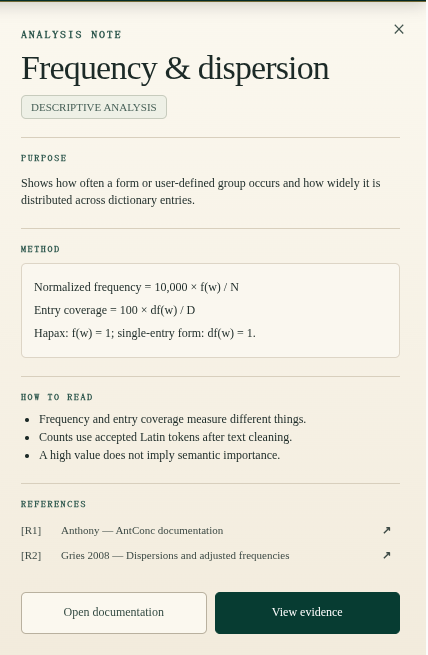
1 Close panel
Close the sidebar without changing the selected analysis or active filters.
2 Purpose
A short statement of the question the selected analysis is designed to answer.
3 Method
Shows the calculation or counting rule used for the current result.
4 How to read
Provides the main interpretative cautions. Use this panel for detail rather than relying on the graph alone.
5 References
Lists the methodological sources associated with the selected analysis.
6 Open documentation
Returns to the relevant documentation section for interface-level guidance.
7 View evidence
When available, opens the underlying attestations behind the numerical result.
Overview
Overview gives a quick description of the currently filtered Latin corpus.
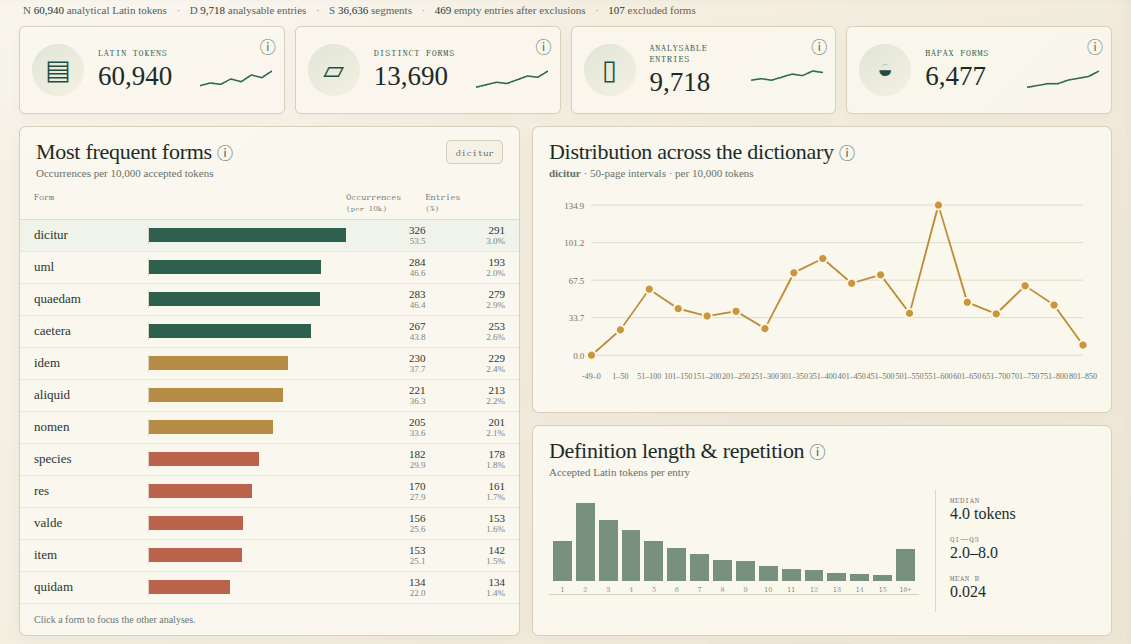
1 Corpus counters
These cards summarise accepted tokens, distinct forms, analysable entries and hapax forms.
2 Frequency ranking
The table ranks forms by frequency. Use its pager to move beyond the first ten results.
3 Select a form
Click a form in the ranking to make it the focus of the distribution and word-exploration tools.
4 Distribution chart
Shows how the selected form is distributed through page intervals in the dictionary.
5 Length and repetition
Summarises definition length and gives a compact descriptive indication of lexical repetition.
Explore words
Explore words follows the selected form or group through its contexts and recurrent local patterns.
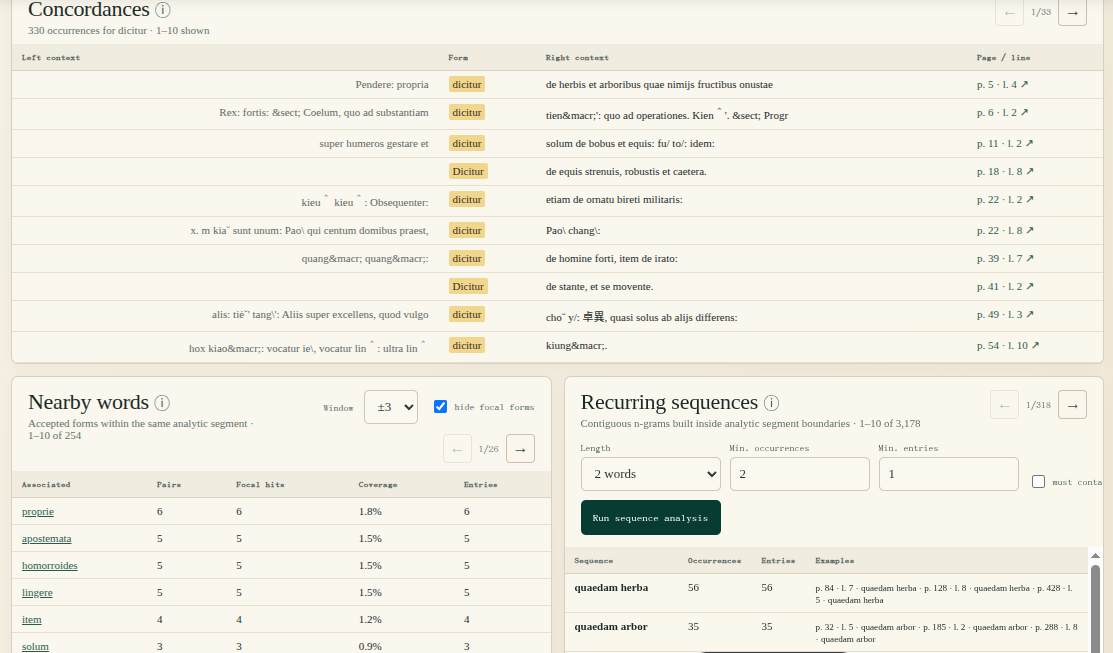
1 Concordances
Shows the selected form in its left and right textual context. The locus link opens the relevant dictionary page and line.
2 Concordance pager
Use the arrows to browse the complete concordance list in fixed-size pages.
3 Nearby controls
Choose a ±3 or ±5-token window and optionally hide forms that belong to the focal group itself.
4 Nearby pager
Browse additional associated forms without expanding the full page vertically.
5 Sequence settings
Set n-gram length and the minimum numbers of occurrences and entries before running the search.
6 Run sequence analysis
Press the button after changing the sequence parameters to calculate a new result set.
7 Sequence results
The table lists recurrent sequences, their counts and examples; use its pager to continue through the ranking.
Compare sections
Compare sections contrasts the relative frequency of forms in two corpus selections.
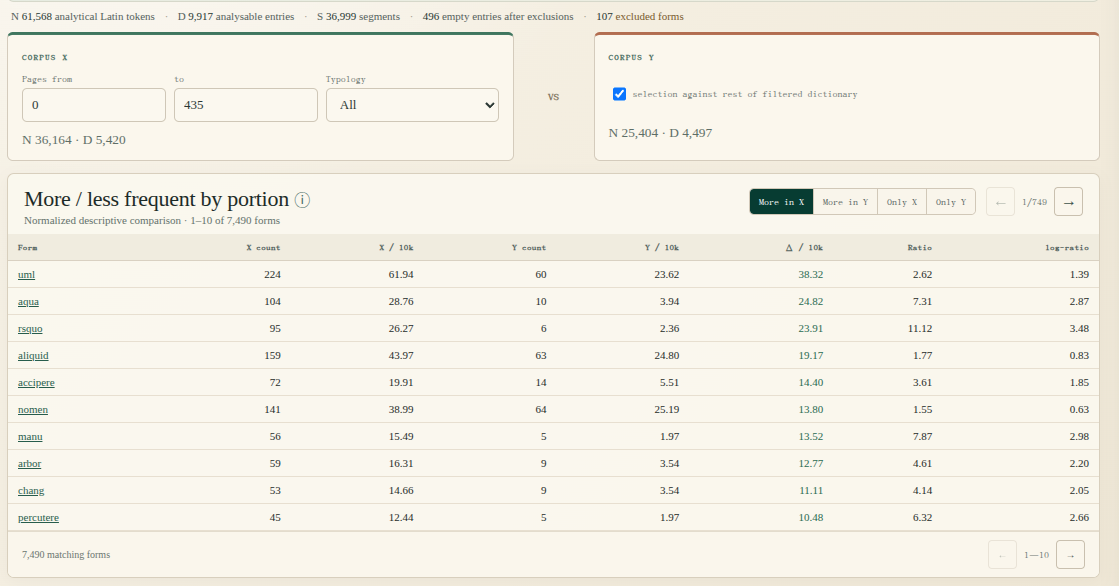
1 Corpus X
Define the first comparison corpus with its page range and typology.
2 Corpus Y or rest
Define a second corpus manually, or compare X automatically against the rest of the currently filtered dictionary.
3 Ranking views
Switch between forms more frequent in X, more frequent in Y, and forms observed only in one selection.
4 Comparison table
Reports raw counts, normalised frequencies, differences and descriptive ratios for each form.
5 Result pagination
Use the arrows to move through the full ranking rather than only the first ten forms.
Dictionary
The Dictionary page is the main environment for browsing the manuscript page by page. It groups entries by page and line, exposes the internal structure of each row, and shows contextual details in the right sidebar when the user clicks on a synonym.
Reading a dictionary page
The first figure introduces the overall layout of the page-level browser. Use it to understand how page navigation, row navigation, filtering, and the contextual sidebar are coordinated.
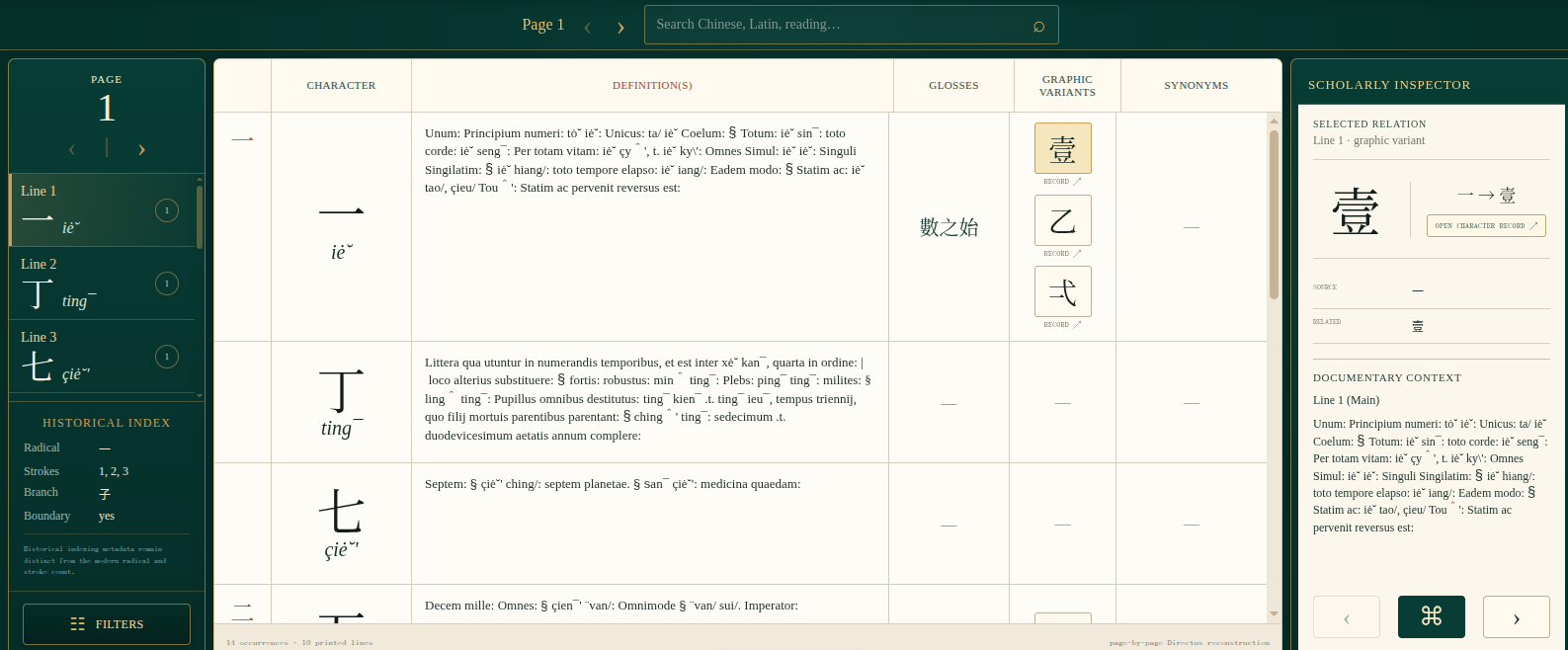
1 Page navigation
The upper controls allow the reader to move backwards and forwards through the manuscript, or to jump directly to a requested page.
2 Page quick list
The left column summarises the lines currently visible on the selected page. It is a quick page-level navigator rather than a full search index.
3 Current page
The current page number is always visible and remains the main reference for all loci cited elsewhere in the application.
4 Main dictionary body
This central area displays the reconstructed content of the manuscript page. Entries are organised by page and line, then expanded into structured columns.
5 Row-based content
Each visible row may contain one or more readings, variants, glosses, graphic forms and synonym information. The internal logic of a row is explained in the next figure.
6 Detail sidebar
The right sidebar updates when a synonym or related element is selected. It presents a focused view of the chosen relation and the relevant contextual data.
7 Filters panel
The filter controls refine the current page view. They allow the reader to narrow the visible material without leaving the dictionary browser.
Reading a dictionary row
The second figure focuses on a single row. It is useful for understanding how a manuscript entry is decomposed into fields, how variants and alternatives are shown, and how cross-references are activated.

1 Stroke boundary marker
The first narrow column is reserved for the stroke marker. When relevant, it shows the Chinese numeral corresponding to the recorded stroke boundary.
2 Character and main reading
This block presents the manuscript character together with its primary romanisation. Characters formalised with square brackets are rendered with an asterisk and link to their character record.
3 Alternative readings
Alternative or secondary readings are grouped beneath the main one. Only alternative readings are repeated here; pure variants are handled in the definitions column.
4 Definition block
The central definition area keeps the manuscript logic intact: main definition first, then explicitly marked variant definitions when the source distinguishes them.
5 Glosses
Chinese glosses are shown separately from the Latin definitions, preserving their documentary role inside the original lexicographic structure.
6 Graphic variants
The graphic variants column isolates alternative graphic forms related to the entry, allowing the reader to compare them at a glance.
7 Synonym cross
Synonyms are arranged in a cross-like layout by position. Clicking one of them opens the sidebar with the preferred scholarly interpretation and the other available options.
Index
The Index page offers a character-centred exploration of the dictionary. It combines radical-based browsing, text filters, a matrix organised by radical and additional strokes, a result table for the selected cell, and a compact analytics bar.
General layout
The overview figure highlights the main navigational logic of the character index.
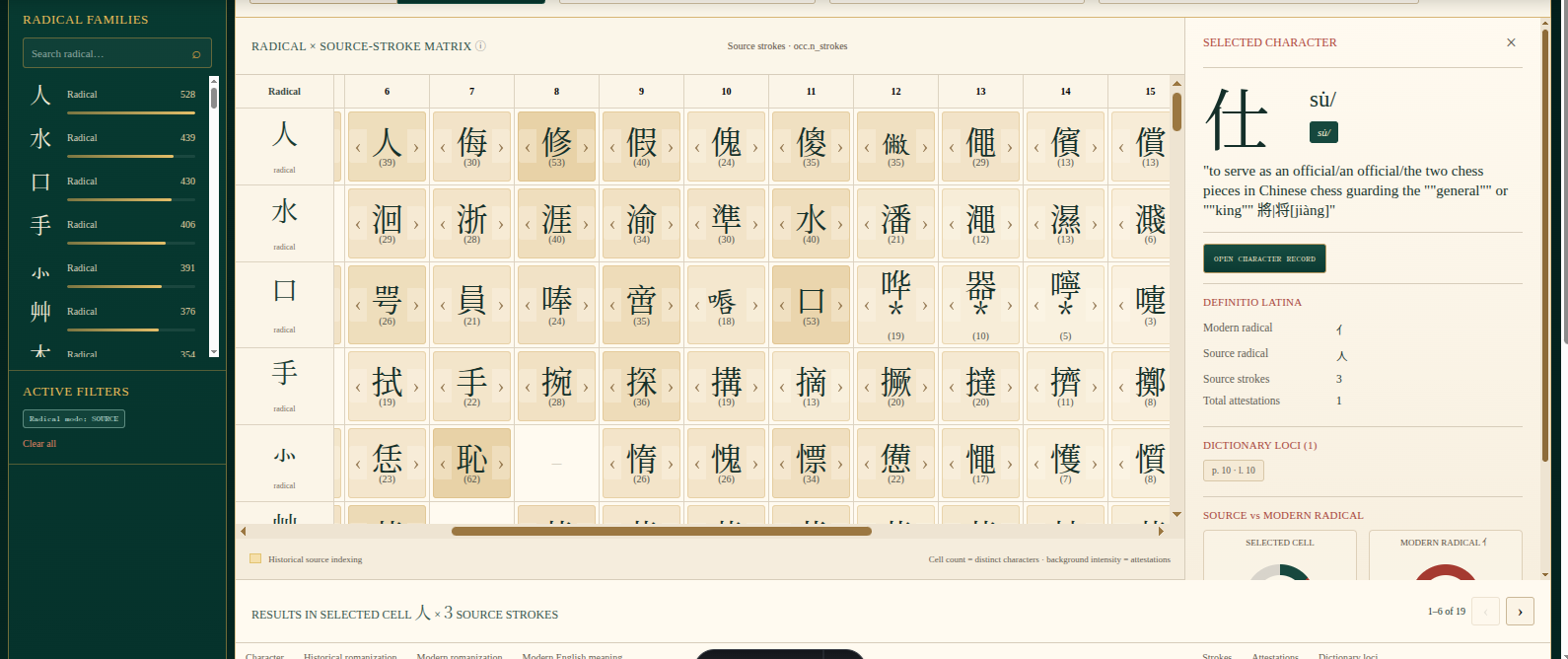
1 Radical browsing controls
The left browsing area combines the radical-mode switch with the radical-family selector. The reader can move between source and modern radical indexing, then choose one of the attested radical families available in the current subset.
2 Filters and quick stats
Historical romanisation, modern romanisation and English meaning can be filtered independently. The active-filter area records the current choices, while the quick statistics summarise the resulting subset.
3 Matrix grid
The matrix crosses radicals with additional strokes. Each cell previews the first attested character in that slot and the total number of attested characters.
4 Selected cell results
When a cell is selected, the result panel below the matrix lists the characters that belong to that combination together with their readings, counts and loci.
5 Selected character panel
The right panel summarises the currently focused character and links the user both to the relevant dictionary loci and to the dedicated character record.
Detail of the results table
The table translates a selected radical × stroke cell into a browsable list of characters.
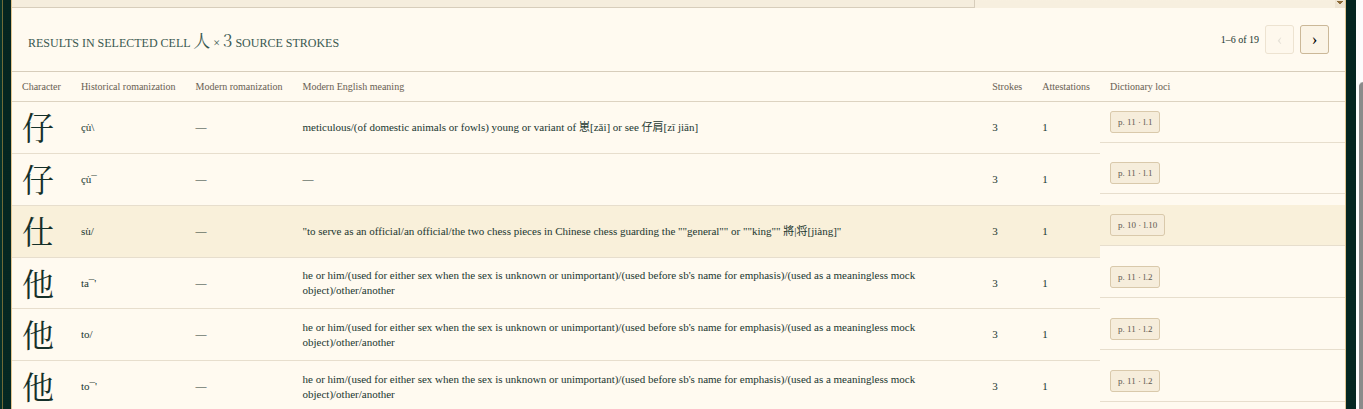
1 Character preview
The first column displays the character currently indexed for the selected matrix cell.
2 Readings and labels
Historical and modern romanisations, together with the relevant labels, allow the reader to compare the documentary and normalised forms.
3 English gloss
The English meaning is meant as a quick orientation tool rather than a substitute for the full Latin definition in the dictionary page or character record.
4 Attestation count
This value tells the reader how many attestations are currently associated with the character in the active filtered subset.
5 Dictionary loci
The loci buttons open the relevant page and line in the dictionary browser, making it easy to move from the analytical index back to the source layout.
Detail of the analytics bar
The lower analytics area condenses the most useful aggregate views for the current filtered subset.

1 Attestations over pages
This chart shows how the current set of attestations is distributed across the manuscript pages.
2 Stroke count distribution
This histogram summarises the stroke counts recorded for the visible subset of characters.
3 Locus density heatmap
The heatmap aggregates page bins and line bins, making it possible to detect where attestations cluster in the manuscript.
Character detail
The character record gathers all the information associated with a single entry point in the index. It is the most synthetic view of a character, because it combines identity data, lexical relations, documentary evidence, and experimental reconstructions of compounds.
Upper section
The upper part of the page combines navigation, summary data, definitions, and the graph of lexical relations.
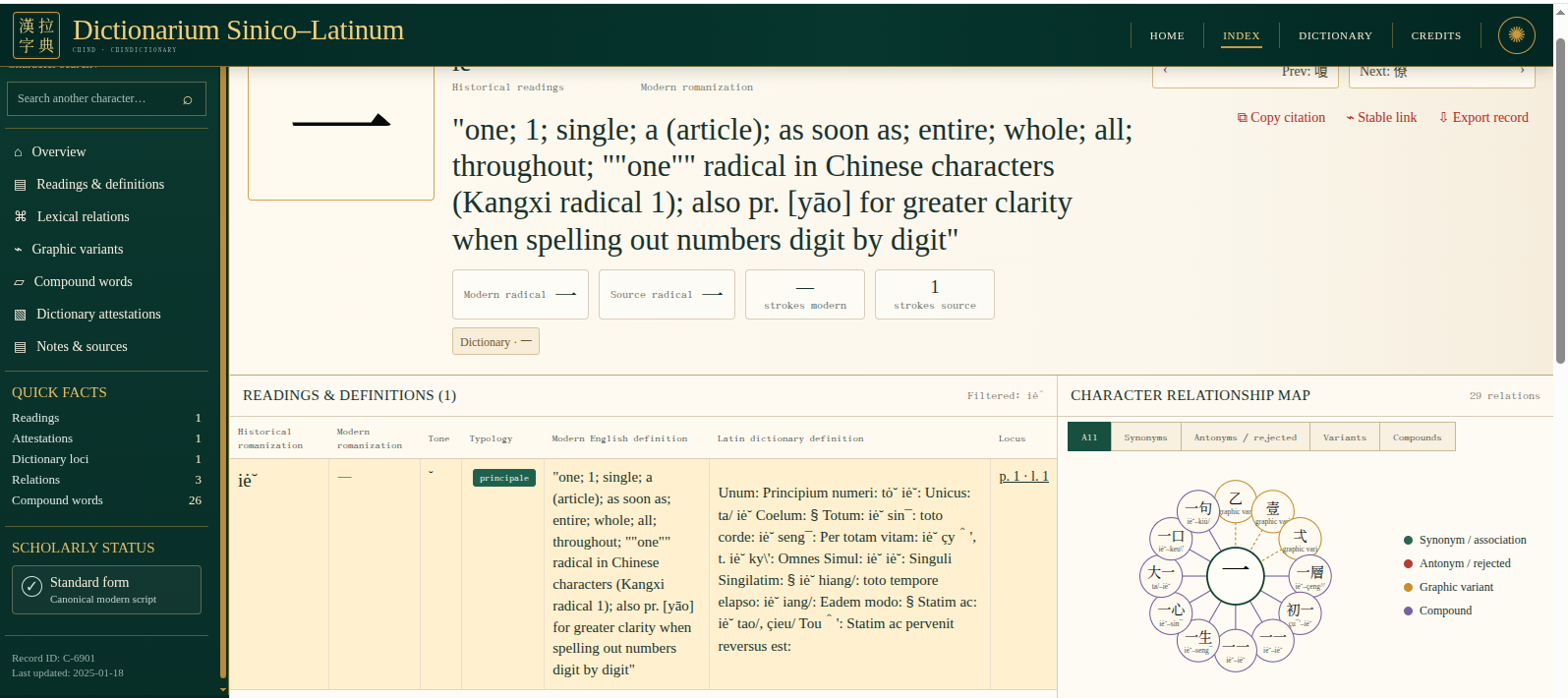
1 Section sidebar
The internal sidebar lets the reader jump quickly between overview, readings, lexical relations, variants, compounds, attestation data, and notes.
2 Character identity and hero data
The hero area contains the main character form, the core readings, the modern and source radicals, and the relevant stroke counts.
3 Readings and definitions table
This table gathers the attested readings, their labels, the English orientation gloss, the Latin definition, and the loci from which the information is drawn.
4 Relationship map
The graph visualises lexical relations such as synonyms, variants and compounds, offering a compact conceptual map of the character’s network.
5 Navigation and citation tools
The upper-right controls provide neighbouring-record navigation as well as stable-link and export actions.
Lower section
The lower half of the page concentrates the denser supporting material: compounds, graphic history, documentary loci, and notes.
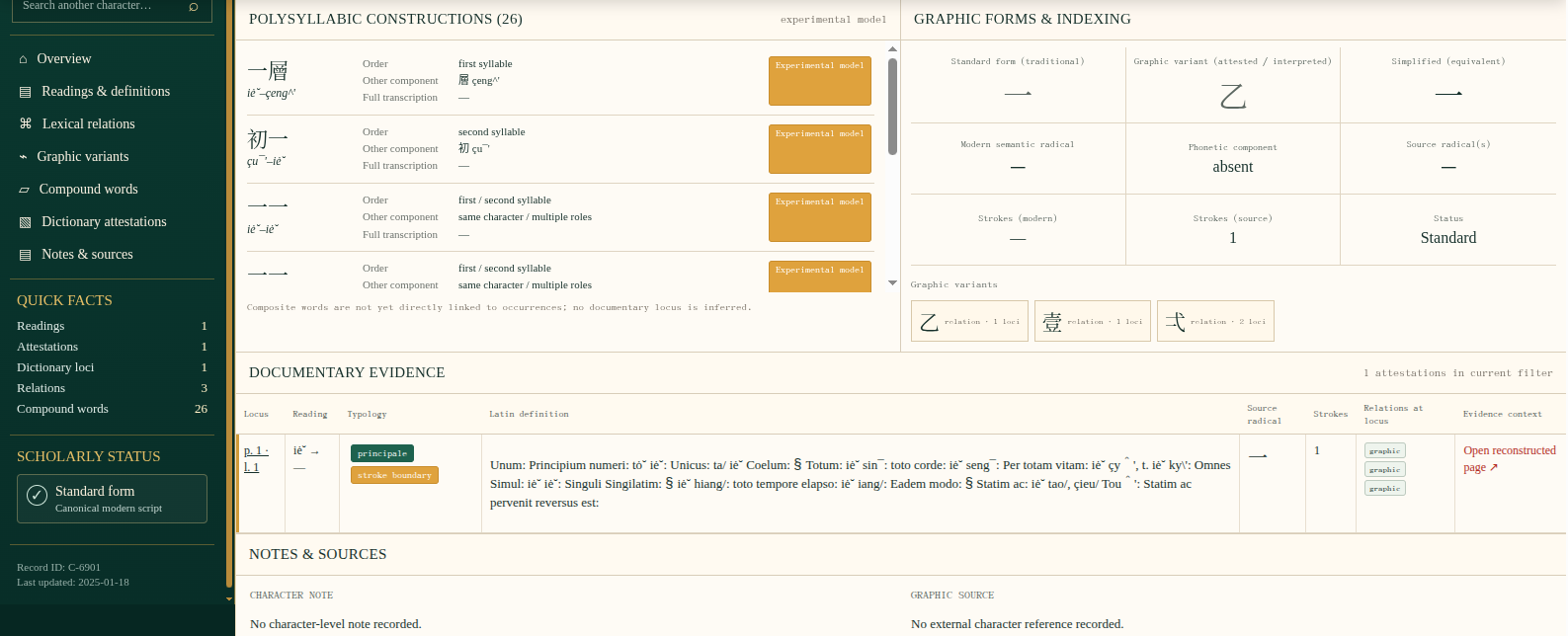
1 Polysyllabic constructions
This panel records disyllabic or polysyllabic constructions associated with the character and serves as the experimental entry point for compound reconstruction.
2 Graphic forms and indexing
Here the reader finds the standard and variant forms of the character, radical information, phonetic component, and the indexing data required for search and comparison.
3 Documentary evidence
The documentary-evidence table brings together loci, readings, typology, Latin definition, source radical, strokes, and contextual links back to the dictionary browser.
4 Notes and sources
The final panel is reserved for descriptive notes and external references associated with the character record.
Credits
The Credits page lists the research team, the institutional partners, and the project identifiers. It is designed as a compact institutional profile of the digital edition and can easily accommodate future profile images or updated roles.
Project roles
The central cards are organised hierarchically, distinguishing the Principal Investigator, Project Leads, Content Leads, and the Digital Infrastructure profile.
Institutional frame
The lower institutional bar gathers the participating universities, the LAD laboratory, and the formal references to the PRIN PNRR project.